
Pet worlds
Give a virtual pet companion six useful sounds
A digital design guide for six distinct pet sounds, paired text cues, user-controlled audio, and a complete silent mode.
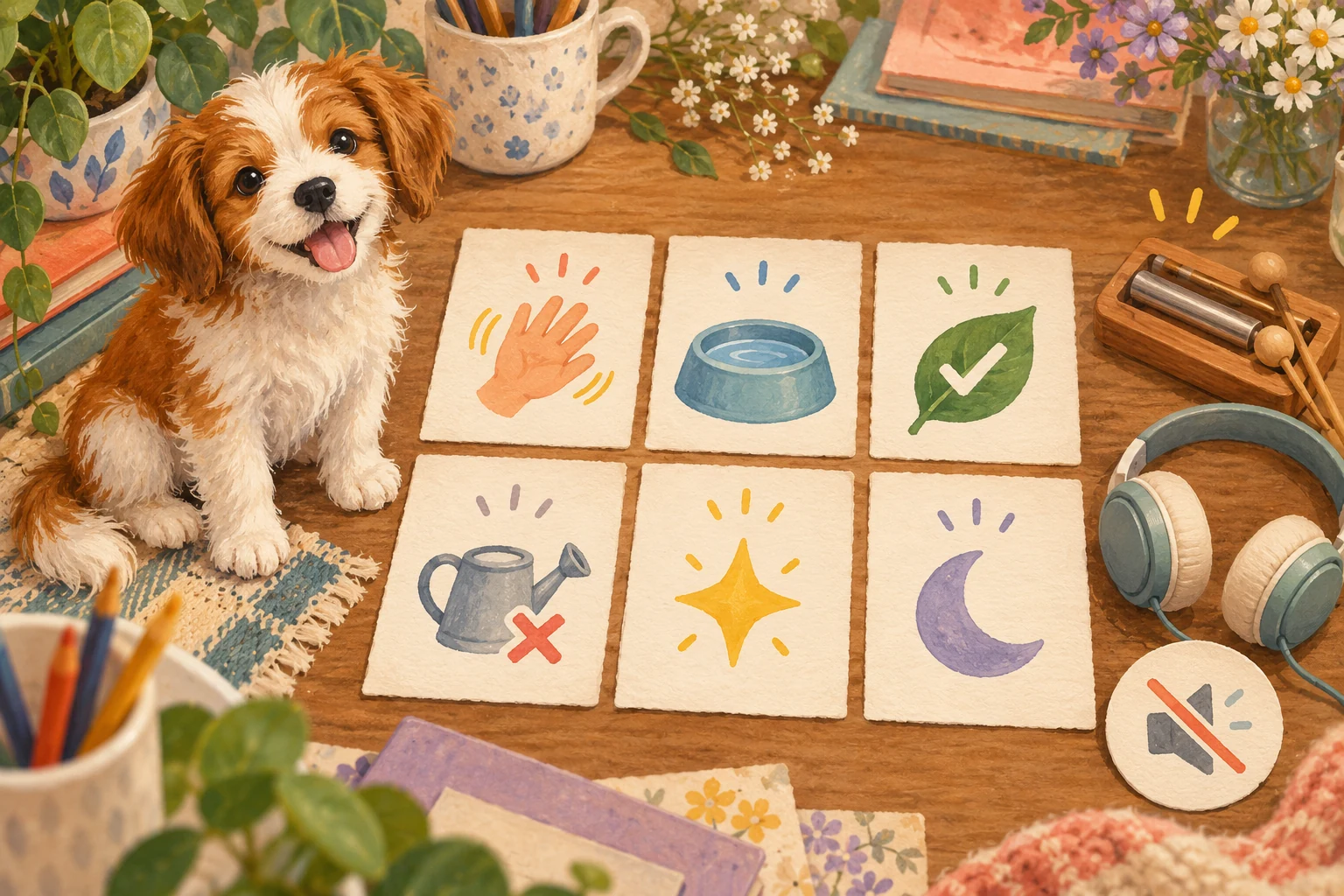
Build a vocabulary, not constant noise
A virtual pet companion does not need to make a sound for every movement. A small vocabulary can give important moments an audible shape while leaving room for silence. This guide is a design exercise using written sound descriptions; it does not assume that any particular app provides sound editing.
Start with six event cards and one rule: every sound has one main meaning. If the same chime means greeting, hunger, success, and discovery, the player must inspect the screen each time to learn what happened.
Write the four fields on every card
Each sound card needs Trigger, Sound, On-screen words, and Silent cue. For example: Trigger—visit begins; Sound—two soft wooden taps; On-screen words—“Moss is here”; Silent cue—the pet appears beside a waving hand icon.
Keep descriptions concrete enough that another person could distinguish the sounds without hearing your imagined version. “High note, short pause, low note” is clearer than “a cute happy sound.”
Sound one: arrival
Use the first sound once when a visit begins or when the player deliberately calls the pet. Make it brief and different from every care alert. Pair it with the pet’s name and a visible greeting.
Do not make arrival audio the only proof that the experience has loaded. The pet’s visible state and a readable message should carry the same essential information.
Sound two: attention is available
The second sound means there is an optional care action to consider. Write the exact reason beside it, such as “Water is available” or “The pet has a question,” instead of using an unexplained exclamation mark.
Play this sound at a chosen moment inside the visit, not repeatedly in the background or as an escalating demand. If nothing is urgent, the wording and rhythm should not pretend that it is.
Sound three: an action succeeded
The third sound confirms that a selected action had its intended result. Match it with a complete status message: “Garden watered; Mintbell is now Sprouting” carries more information than “Done.”
W3C guidance says status messages in web content should be programmatically identifiable so assistive technology can present important changes without unnecessarily moving focus. The visible message and its programmatic form should describe the same result.
Sound four: an action is unavailable
The fourth sound marks a blocked or unavailable action without scolding the player. Pair one low, brief cue with an explanation and a next step: “The watering can is empty; refill it in the home area.”
Do not use a harsh sound as the only error signal. The screen should retain the reason long enough to read, and focus should remain predictable.
Sound five: a discovery
Reserve the fifth sound for an uncommon optional discovery: a new garden detail, an object the pet noticed, or a memory the player chose to save. A reserved cue stays distinctive because ordinary taps do not reuse it.
Show the discovery title at the same time and let the player dismiss it. If the event contains a longer prerecorded audio-only moment, provide equivalent information in text; W3C guidance requires an alternative for prerecorded audio-only content.
Sound six: rest or goodbye
Use the final sound when the player deliberately ends a visit or settles the pet into rest. It should confirm closure rather than warn about what will happen while the player is away.
Pair the cue with a stable message such as “Visit saved locally” only when that statement is actually true for the product. A concept sketch can instead say “End-of-visit message appears here” until persistence is verified.
Start audio through a deliberate action
Let the player begin sound with a clearly labeled control such as “Start visit with sound.” Avoid starting music or pet noises before the person has found the controls.
W3C’s Audio Control guidance requires a way to pause, stop, or independently control audio that plays automatically for more than three seconds, and it encourages sounds to begin after an intentional user action. A design can simplify this by avoiding autoplay altogether.
Provide mute, volume, and a complete silent mode
Place a persistent sound control where it can be found from every pet area. Mute should stop nonessential audio immediately, and the preference should remain understandable when the player returns.
Test the whole visit with device audio off. Arrival, attention, success, unavailable actions, discoveries, and goodbye must still be clear through words and visible cues. Silent mode is a complete way to play, not a reduced version that hides state.
Run a six-card confusion test
Shuffle the written sound cards and read only the Sound field. Ask another person to match each description to its trigger, then repeat using only the on-screen words and silent cues.
If two sounds are confused, change rhythm, pitch direction, material, or spacing rather than simply making one louder. If two text cues are confused, name the object and result more specifically.
Keep the Little Together boundary clear
Little Together is in development. The current prototype explores local care, a home, a garden, and intentional memories. Partner perspectives are simulated; remote care, accounts, and invitations are planned rather than available.
This six-sound vocabulary is a guide for evaluating or sketching a virtual pet companion. It does not announce recorded voices, sound packs, notifications, shared audio, or a released game. App, download, and play links remain Coming soon.
A little more to explore
 Pet worlds
Pet worlds · 21 Oct 2026
Design a virtual pet garden that shows what changed
A readable virtual garden game guide with three plots, named growth states, clear action results, and no urgency loop.
A little read ↗ Pet worlds
Pet worlds · 20 Oct 2026
Run a virtual pet costume showcase without voting
A digital-only costume guide with three design rounds, readable labels, fair reveals, and no popularity ranking.
A little read ↗